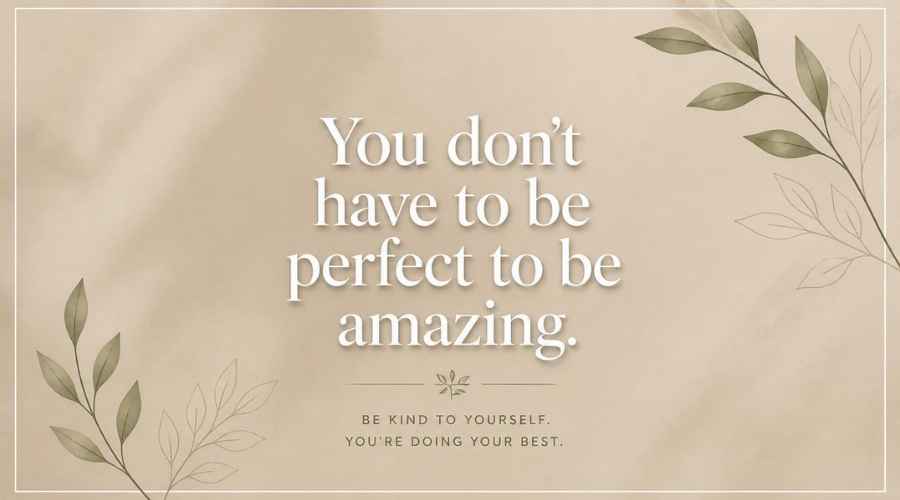
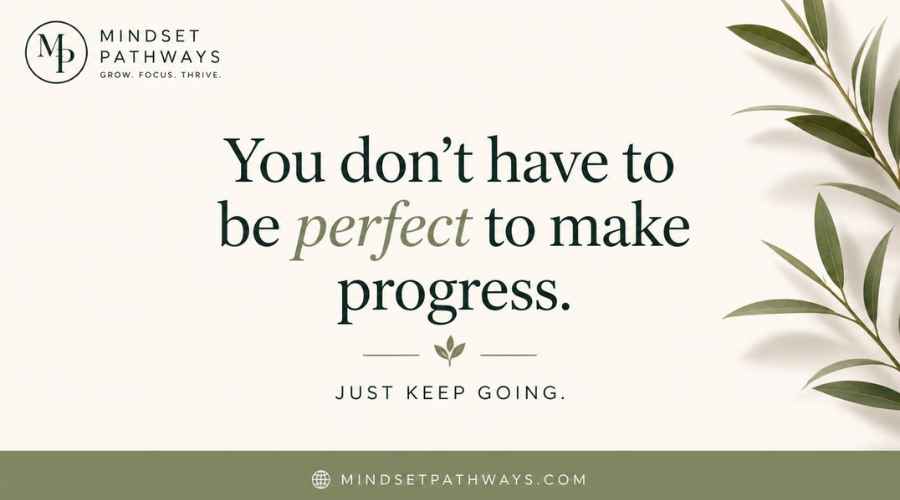
 Use this as a placeholder preview until you add your final image.
Introduction
A good design does not always need complicated software. If you know the right size, use a clear layout and keep your text readable, you can create polished graphics directly in your browser.
In this beginner-friendly guide, you’ll learn how to create a instagram quote image online, what size to use, what elements to include, and how to export a clean image when you are done. You can follow the steps in any modern editor, or open the Canvix editor and start designing right away.
What Makes a Good Quote Image?
A good quote image is simple, readable and emotionally clear. The quote should be the focus. The background, colors and typography should support the words without distracting from them.
Step 1: Choose the Right Instagram Size
For quote images, use 1080 x 1080 pixels for a square post or 1080 x 1350 pixels for a taller portrait post. Portrait gives you more space for longer quotes and usually feels larger in the feed.
Step 2: Pick a Short Quote
Short quotes usually work better because they remain readable on mobile. If the quote is long, break it into two or three lines and increase the spacing.
- Keep the quote focused on one idea
- Use line breaks intentionally
- Add the author name in smaller text
- Avoid putting too many words in one image
Step 3: Choose a Simple Background
Quote images work well with simple backgrounds. You can use a solid color, gradient, texture, photo or soft AI-generated background.
If you use a photo, blur or darken it slightly so the quote stays readable.
Step 4: Use Typography as the Main Design
Typography is the design. Choose one strong font for the quote and one simple font for the author name or small label.
- Use bold or semi-bold text for readability
- Keep enough spacing between lines
- Center-align for classic quote posts
- Use left-align for a more editorial look
Step 5: Add Small Decorative Elements
Add quotation marks, thin lines, small icons or subtle shapes. Keep them minimal so the quote remains the focus.
Step 6: Add Your Branding
If the image is for a brand account, add a small logo, username or website at the bottom. Keep it subtle.
You can also create a matching Instagram post design style so your quote images fit with your other posts.
Step 7: Export and Post
Export as PNG if your quote image has sharp text and graphic elements. JPG also works if the file is photo-heavy.
Common Quote Image Mistakes
- Using a font that is hard to read
- Adding too much decoration
- Using a busy photo behind small text
- Making the quote too long
- Forgetting spacing around the edges
Related Design Guides
Once you have created your instagram quote image, you can use the same skills to make other graphics:
Conclusion
You do not need Photoshop or advanced design experience to create a clean instagram quote image. Start with the right canvas size, choose one clear message, use readable text, keep the layout simple and export your final design as a JPG or PNG.
Templates, stock photos, uploads, layers, effects and AI backgrounds can all speed up the process. The more you reuse a consistent style, the faster your graphics will look polished and recognizable.
Ready to design your own? open the Canvix editor, choose your canvas size and start creating online.
