 Use this as a placeholder preview until you add your final image.
Introduction
A good design does not always need complicated software. If you know the right size, use a clear layout and keep your text readable, you can create polished graphics directly in your browser.
In this beginner-friendly guide, you’ll learn how to create a linkedin banner design online, what size to use, what elements to include, and how to export a clean image when you are done. You can follow the steps in any modern editor, or open the Canvix editor and start designing right away.
What Size Should a LinkedIn Banner Be?
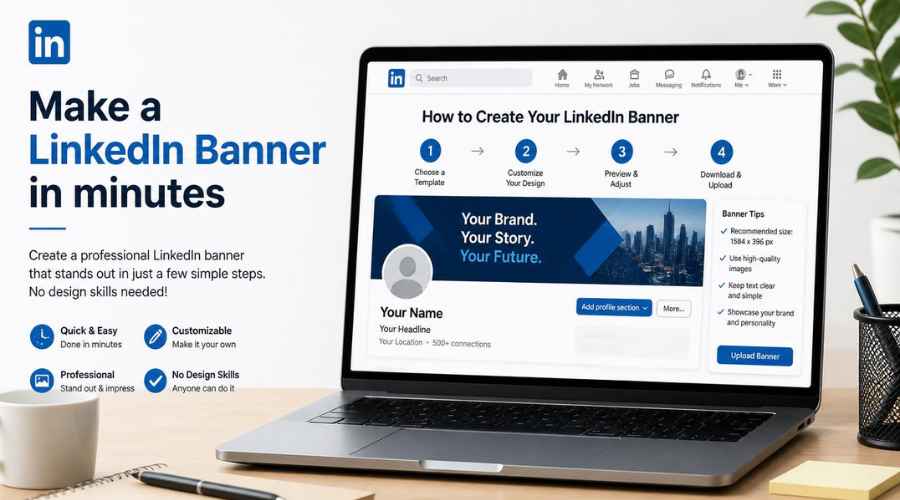
For a personal LinkedIn profile banner, a common recommended size is 1584 x 396 pixels. For a LinkedIn company page cover image, a common size is 1128 x 191 pixels.
Personal profile banners have a profile photo overlapping the lower-left area, so avoid placing important text or logos there. Keep your main message toward the center and right side.
Step 1: Choose the Purpose of Your Banner
A LinkedIn banner should quickly support your professional identity. Good banner ideas include:
- Your role or niche
- A short value proposition
- Your company or product branding
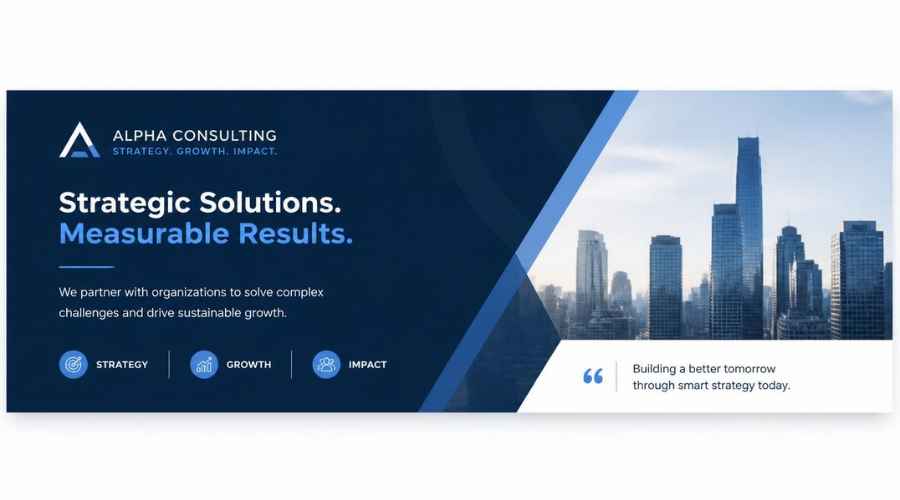
- A professional background image
- A simple call to action, such as “Available for freelance projects”
Step 2: Create the Correct Canvas
Open an online editor and create a 1584 x 396 pixel canvas for a personal profile banner. If you are creating a company page banner, use 1128 x 191 pixels.
Because the banner is very wide and short, avoid tall design elements. Use a horizontal layout with plenty of empty space.
Step 3: Use a Professional Background
LinkedIn is more professional than casual social platforms, so the background should feel clean and trustworthy.
- Use a subtle gradient or abstract pattern
- Use a workspace, city, industry or product photo
- Use your brand colors in a simple layout
- Avoid loud meme-style graphics unless they fit your personal brand
Step 4: Add a Short Professional Message
Keep the text short and direct. The banner should support your profile, not replace your bio.
- “Helping SaaS teams improve onboarding”
- “Freelance UI Designer”
- “Founder of Canvix”
- “Marketing, Design & Growth”
Use a clean, readable font. Avoid tiny text because the banner appears smaller on some screens.
Step 5: Avoid the Profile Photo Area
On personal profiles, the profile photo overlaps the left side of the banner. Keep your main headline away from that area. A simple rule is to place important text toward the center-right.
Step 6: Add Subtle Brand Elements
You can add a logo, website URL, small icon or brand shape. Keep these elements subtle so the banner does not feel cluttered.
If you already made a product promo graphic, you can reuse some colors and typography to keep your professional branding consistent.
Step 7: Export and Upload to LinkedIn
Export your banner as a PNG or JPG. Upload it to LinkedIn, then check both desktop and mobile views. If anything important is cropped, go back to the editor and move it inward.
Common LinkedIn Banner Mistakes
- Using text that is too small
- Putting important content under the profile photo
- Using a blurry background image
- Adding too many icons or logos
- Making the banner too casual for your audience
Related Design Guides
Once you have created your linkedin banner, you can use the same skills to make other graphics:
Conclusion
You do not need Photoshop or advanced design experience to create a clean linkedin banner. Start with the right canvas size, choose one clear message, use readable text, keep the layout simple and export your final design as a JPG or PNG.
Templates, stock photos, uploads, layers, effects and AI backgrounds can all speed up the process. The more you reuse a consistent style, the faster your graphics will look polished and recognizable.
Ready to design your own? open the Canvix editor, choose your canvas size and start creating online.
