Use this as a placeholder preview until you add your final image.
Introduction
A good design does not always need complicated software. If you know the right size, use a clear layout and keep your text readable, you can create polished graphics directly in your browser.
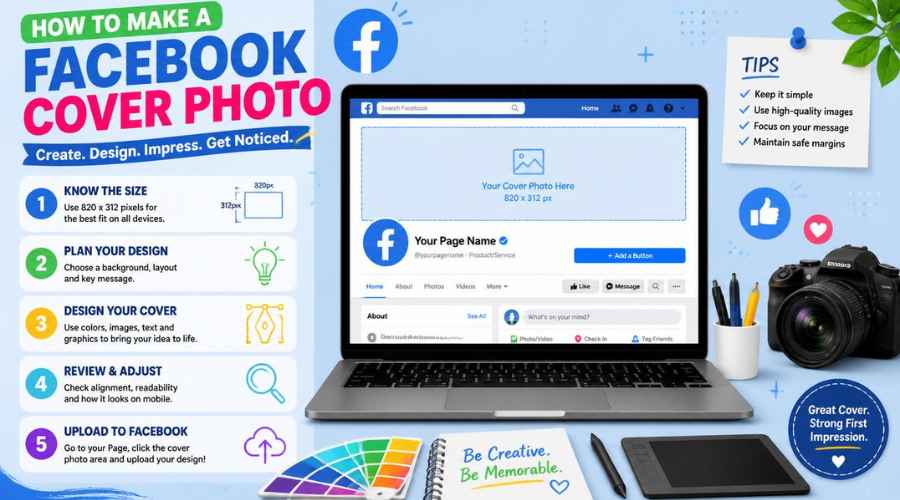
In this beginner-friendly guide, you’ll learn how to create a facebook cover photo design online, what size to use, what elements to include, and how to export a clean image when you are done. You can follow the steps in any modern editor, or open the Canvix editor and start designing right away.
What Size Should a Facebook Cover Photo Be?
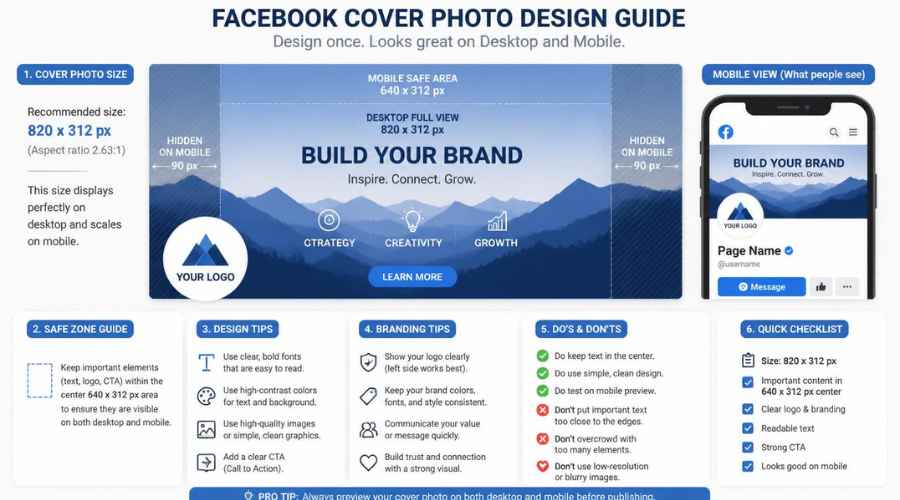
A common Facebook Page cover photo size is around 820 x 312 pixels on desktop, but it can display differently on mobile. A practical design size is 820 x 360 pixels because it gives you extra vertical room for mobile cropping.
The most important rule is to keep logos, text, faces and important graphics near the center. Avoid placing key information at the far edges or very top and bottom.
Step 1: Decide What Your Cover Should Communicate
Your Facebook cover is often the first large visual people see when they visit your page. Use it to quickly explain who you are or what you offer.
- Business name and tagline
- Current offer or seasonal campaign
- Product or service preview
- Brand photo or lifestyle image
- Event or launch announcement
Step 2: Create a Wide Canvas
Create a wide canvas in your editor. You can use 820 x 360 pixels as a beginner-friendly size, then keep your text and logo in the middle safe area.
If your editor lets you use layers, add a background image first, then place text, logo and overlays above it. This makes it easier to move each element without disturbing the whole design.
Step 3: Choose a Strong Background Image
A cover photo works best when it has one clear visual. Avoid using a collage with too many small images, because the cover is cropped differently across devices.
- Use a clean product photo for ecommerce pages
- Use a team or workspace photo for service businesses
- Use a lifestyle image for creators and personal brands
- Use a simple gradient or pattern if text is the main focus
Step 4: Add Text Carefully
Text on a Facebook cover should be short. Think of it like a billboard, not a paragraph.
- Use a short headline or tagline
- Keep the font large and bold
- Place text near the center
- Use an overlay if the photo is too busy
- Avoid putting important words in the corners
Step 5: Add Your Brand Elements
You can include your logo, brand colors, website name or a short call to action. Keep it subtle and clean.
For example, a local bakery might use a food photo, a short tagline and a small website URL. A designer might use a clean portfolio-style banner with their name and specialty.
Step 6: Preview Desktop and Mobile Cropping
Facebook cover photos can appear differently depending on screen size. Before uploading, zoom out and imagine the top, bottom and sides being cropped.
If the design still makes sense after slight cropping, it is probably safe. If your headline or logo gets cut off, move it closer to the center.
Step 7: Export Your Cover Photo
Export as JPG for photo-based covers or PNG for text-heavy graphics. Upload it to your Facebook Page and check how it looks on both desktop and mobile.
Common Facebook Cover Mistakes
- Putting text too close to the edges
- Using a busy collage that looks messy when cropped
- Using a low-resolution image
- Making the logo too large
- Forgetting to check the mobile view
Related Design Guides
Once you have created your facebook cover photo, you can use the same skills to make other graphics:
Conclusion
You do not need Photoshop or advanced design experience to create a clean facebook cover photo. Start with the right canvas size, choose one clear message, use readable text, keep the layout simple and export your final design as a JPG or PNG.
Templates, stock photos, uploads, layers, effects and AI backgrounds can all speed up the process. The more you reuse a consistent style, the faster your graphics will look polished and recognizable.
Ready to design your own? open the Canvix editor, choose your canvas size and start creating online.
