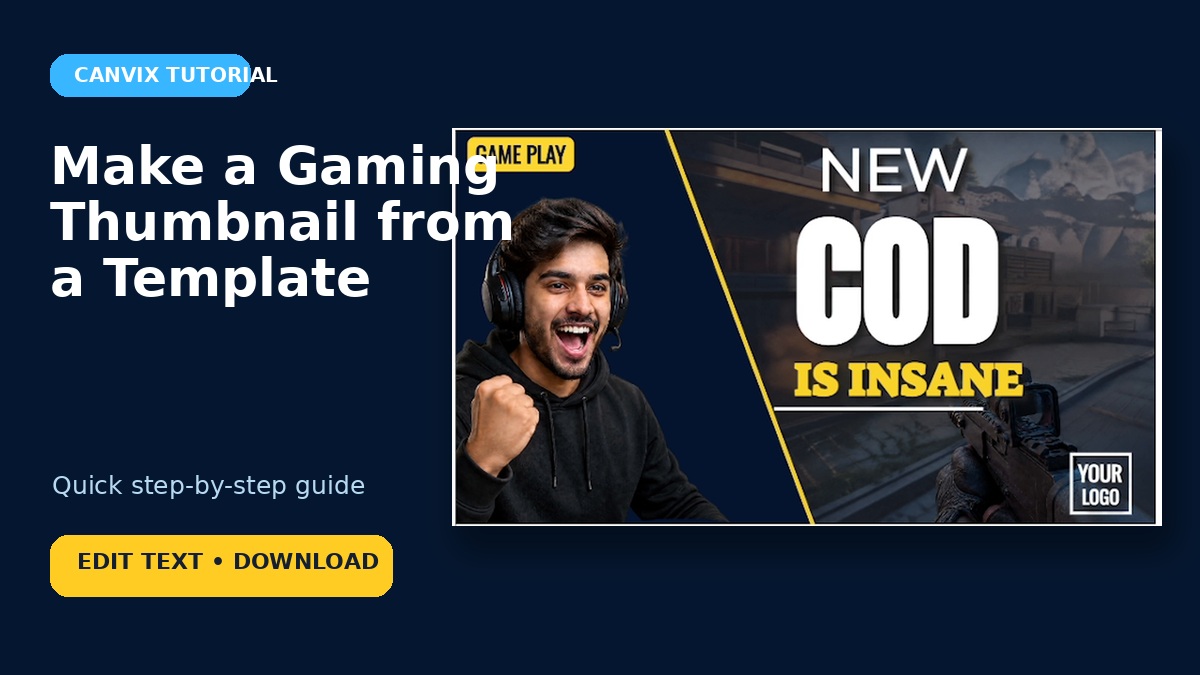
A gaming thumbnail does not need to be built from scratch to feel original. A good template gives you the structure—the layout, contrast, text hierarchy, and image placement—while you bring in the part that makes it yours: the game, the video idea, and the wording.
In this quick tutorial, we will customise the Bold Split Gaming YouTube Thumbnail Template in Canvix, replace the main headline, adjust the text styling, check the finished design, and download it as a JPG.
Choose a template → create the design → replace the headline → adjust the text → check the layout → download as JPG.
Why Start With a Gaming Thumbnail Template?
A template saves time, but its real value is structure. The example used here already has a strong split layout, large text, a clear presenter image, and enough contrast to work at thumbnail size.
Your job is not to redesign every part. It is to make the template match the actual video without losing the visual balance that made the layout useful in the first place.
Before opening the editor, decide on one short message for the thumbnail. For this example, the finished headline becomes:
NEW COD IS INSANE
That is short, easy to scan, and clearly connected to a Call of Duty video.
1. Choose a Gaming Thumbnail Template
Open the Canvix template library and select YouTube. You can use the available category and size filters to narrow the results and find a gaming layout.
For this tutorial, choose the Bold Split Gaming YouTube Thumbnail Template. Its layout already separates the presenter from the headline, which gives both parts enough room to stand out.
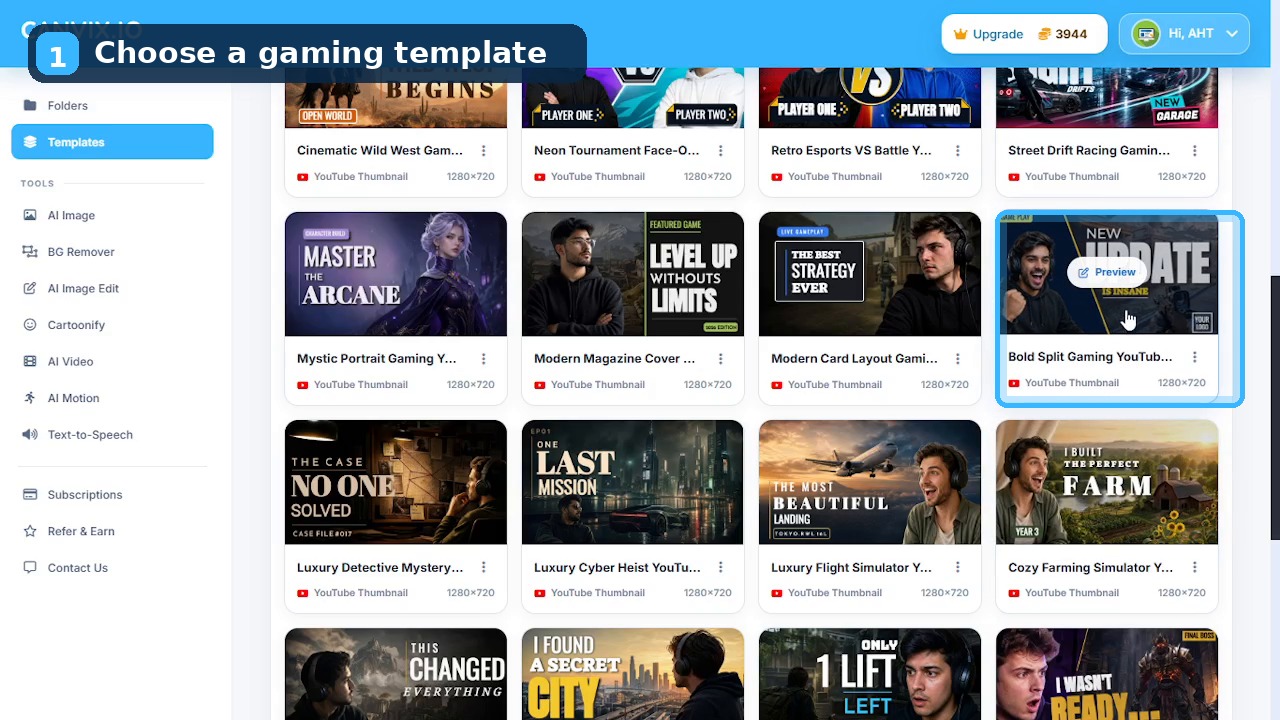
2. Name and Create the Design
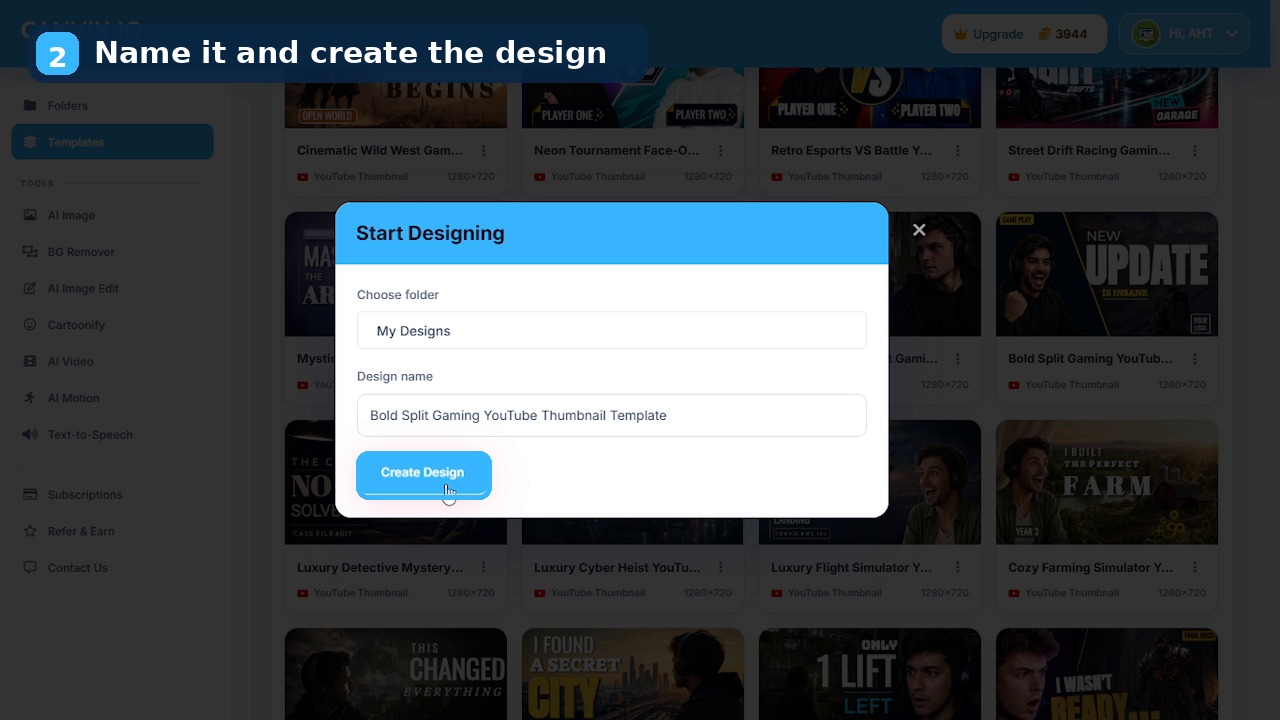
Click the template preview to open the Start Designing window.
Choose where the project should be saved, update the design name when needed, and click Create Design. A clear project name will make the thumbnail easier to find when you return to it later.
3. Replace the Main Headline
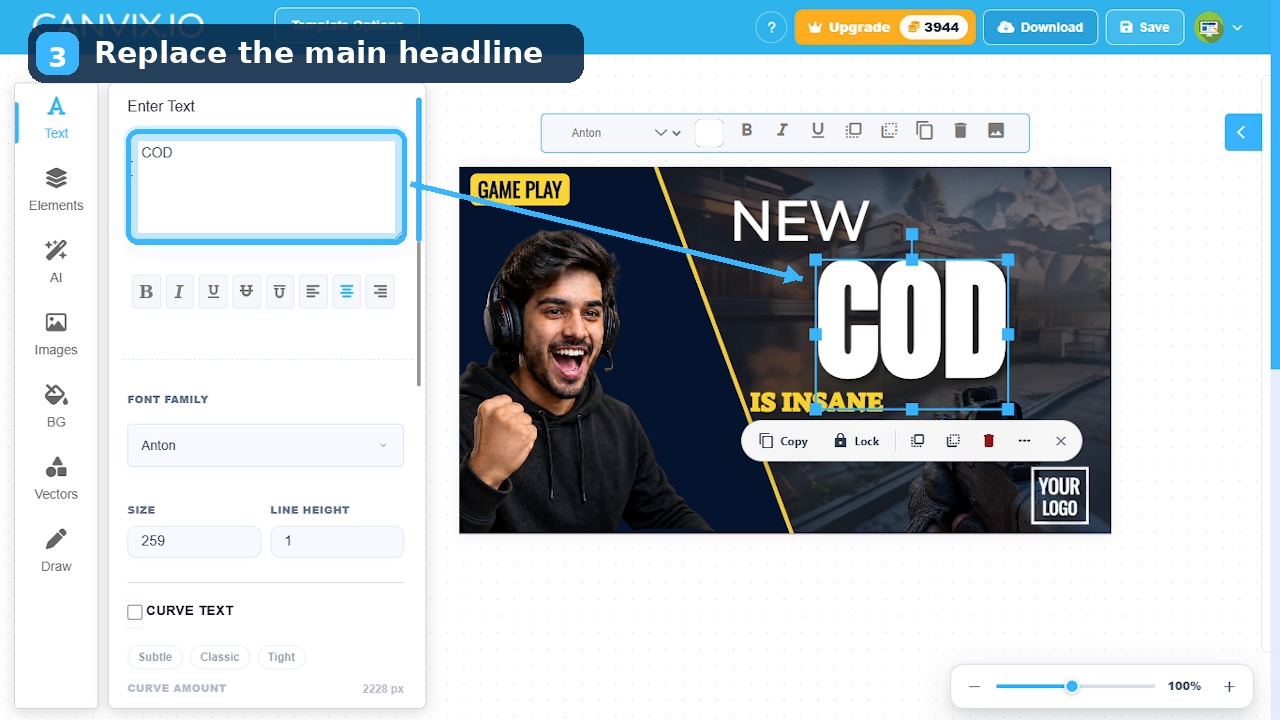
Once the template opens in the editor, click the large headline on the canvas. The selected text appears in the Enter Text field in the left panel.
In this example, the original word UPDATE is replaced with COD. The canvas updates immediately while keeping the font, colour, stroke, and other styling from the template.
Keep the headline short. Gaming thumbnails are viewed quickly and often at a small size, so a few strong words normally work better than a full sentence.
Useful headline styles include:
- NEW COD IS INSANE
- BEST LOADOUT?
- I FINALLY WON
- NEW UPDATE TESTED
- THIS CHANGES EVERYTHING
The wording should match the real video. A strong thumbnail creates interest without promising something that never appears.
4. Adjust the Text Without Ruining the Template
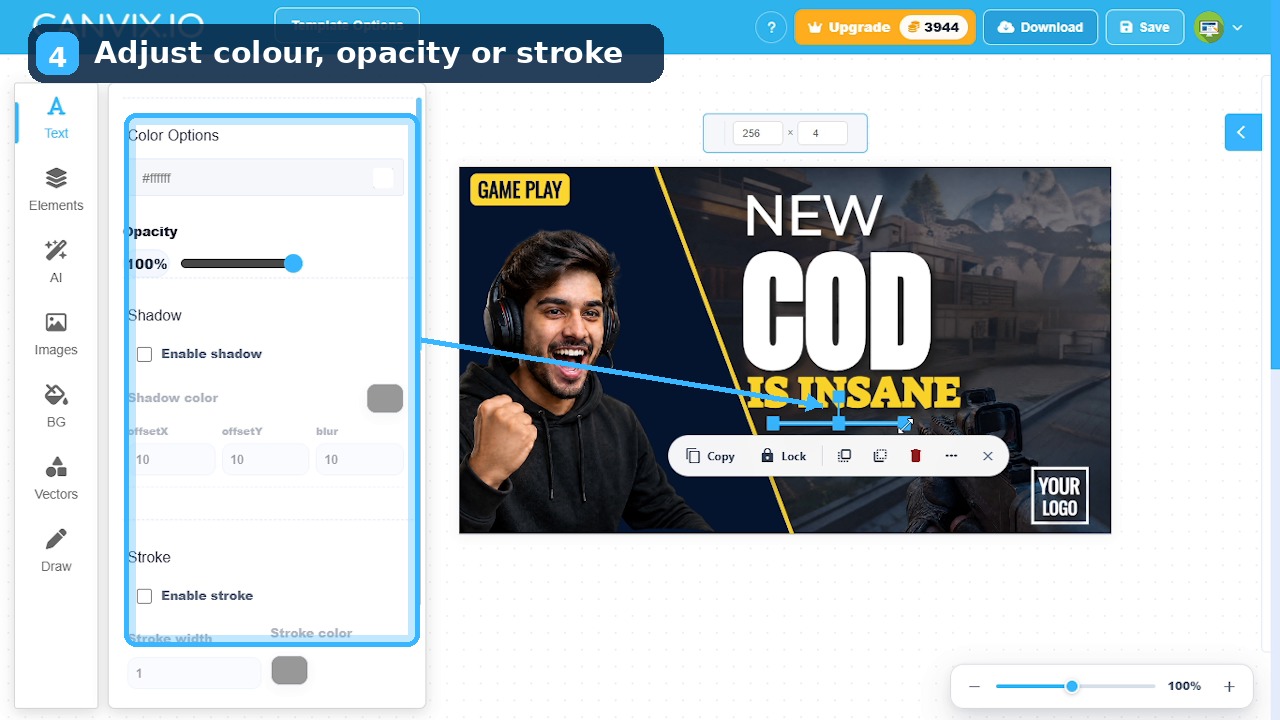
Select another text layer to open its styling controls. Canvix lets you adjust details such as:
- Text colour
- Opacity
- Shadow
- Stroke
- Size
- Position
For a quick template edit, make small changes first. The template already has a clear visual hierarchy, so avoid turning every line into the same size or colour.
Keep the hierarchy clear
The largest words should carry the main idea. Smaller words should support it. In this design, COD becomes the main visual anchor while the surrounding wording completes the message.
Protect the contrast
Light wording needs a darker area behind it, while dark wording needs a brighter background. If the text becomes harder to read after a colour change, return to the original styling or increase the contrast.
Do not overcrowd the layout
The presenter and headline already fill the important parts of the thumbnail. Extra arrows, stickers, and labels are unnecessary unless they point to something that genuinely matters.
5. Check the Thumbnail at a Smaller Size
Before downloading, zoom out and look at the complete design. A YouTube thumbnail may appear much smaller than it does inside the editor.
Ask yourself:
- Can I read the main headline immediately?
- Is the presenter still easy to recognise?
- Does one part of the design clearly attract attention first?
- Does the thumbnail match the video topic?
- Is anything unnecessary making the design harder to understand?
The final version remains close to the original template, but the message now fits the new Call of Duty video. That is often all a good template edit needs.
6. Download the Finished Thumbnail
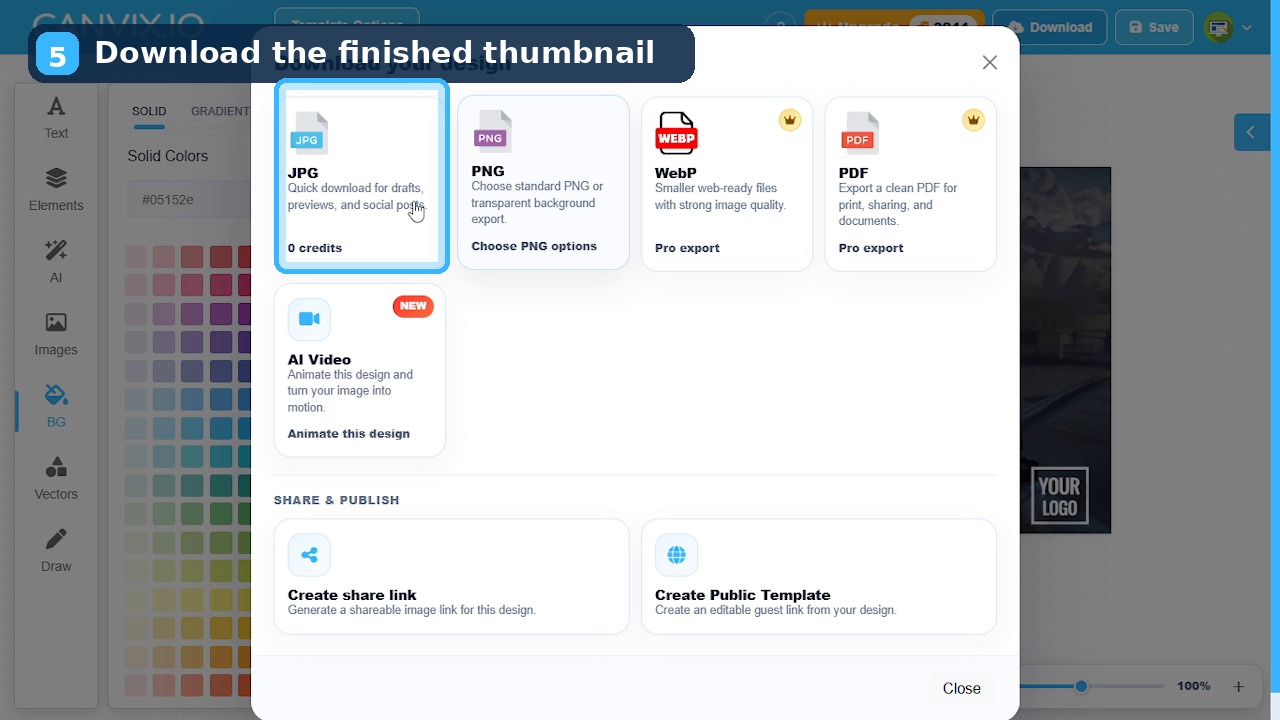
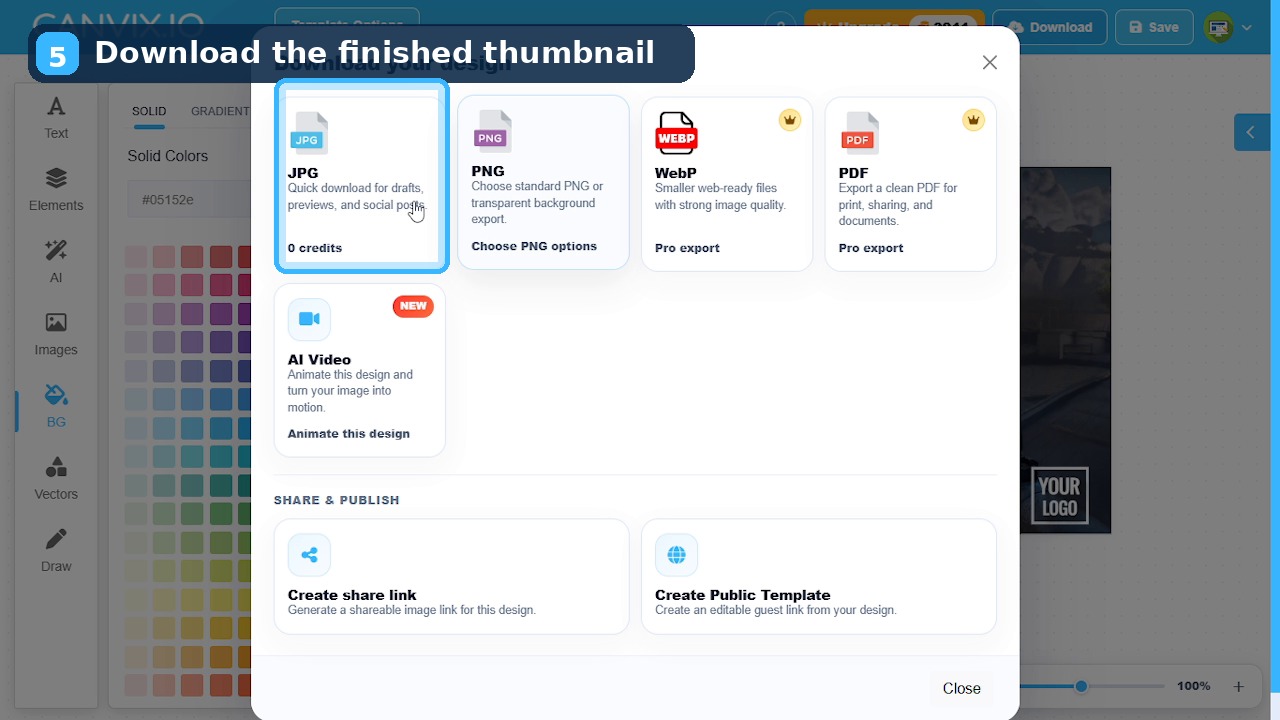
Click Download in the top toolbar to open the export window. Select JPG, then save the finished thumbnail to your device.
JPG is a straightforward choice for this type of image because the design contains a full photographic background and does not need transparency.
Quick Gaming Thumbnail Checklist
- The thumbnail matches the actual video.
- The main headline is short and easy to read.
- The presenter or gaming subject remains visible.
- The text and background have enough contrast.
- The design still works when viewed at a smaller size.
- Unnecessary effects and decorations have been removed.
- The finished thumbnail has been downloaded as JPG.
Final Thoughts
Using a Canvix gaming template is a fast way to create a polished thumbnail without starting from an empty canvas. The layout, text hierarchy, and image placement are already prepared, so you can focus on making the design fit your video.
For this example, the main changes were simple: choose the template, create the project, replace the headline with COD, adjust the text styling, check the final layout, and download the result.
The best template edits do not change everything. They keep the parts that already work and replace only what is needed to make the design accurate, readable, and relevant.