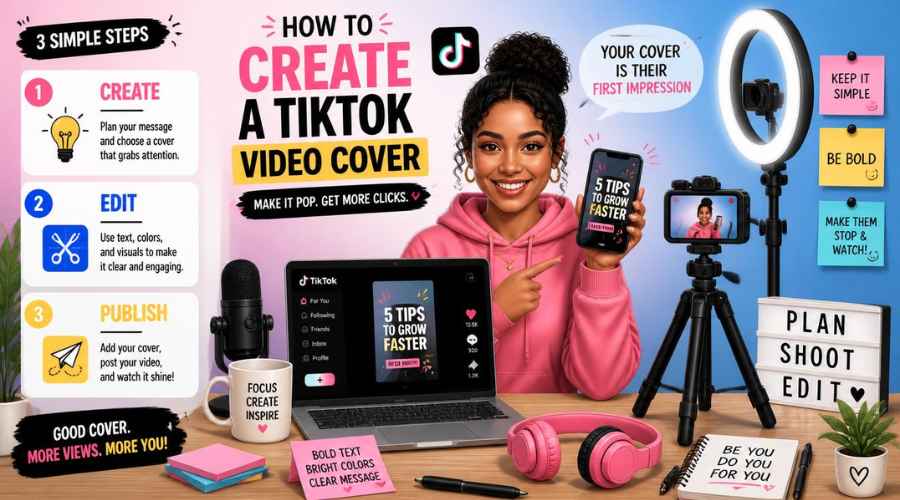

Use this as a placeholder preview until you add your final image.
Introduction
A good design does not always need complicated software. If you know the right size, use a clear layout and keep your text readable, you can create polished graphics directly in your browser.
In this beginner-friendly guide, you’ll learn how to create a tiktok video cover design online, what size to use, what elements to include, and how to export a clean image when you are done. You can follow the steps in any modern editor, or open the Canvix editor and start designing right away.
What Size Should a TikTok Video Cover Be?

A good TikTok cover size is 1080 x 1920 pixels, which matches the vertical 9:16 format used by TikTok videos. Keep the most important text and subject near the center because profile grids and previews can crop the top and bottom.
Why TikTok Covers Matter
A TikTok video cover is like a mini thumbnail for your video. It helps people understand the topic before they tap, and it makes your profile grid look more organized.
- It improves your profile’s visual consistency
- It makes tutorials and series easier to recognize
- It can make older videos easier to browse
- It helps your content feel more intentional
Step 1: Create a Vertical Canvas
Open your editor and create a 1080 x 1920 pixel canvas. This gives you a tall vertical layout that fits TikTok’s full-screen format.
If you are designing several covers for a content series, create one layout and reuse it with different titles.
Step 2: Choose a Strong Frame or Background
You can design the cover using:
- A screenshot from the video
- A clean background photo
- A product or face cutout
- A simple color background
- An AI-generated background that matches the topic
If the background is busy, darken it slightly or add a colored overlay before adding text.
Step 3: Add a Bold Title
TikTok covers need very readable text. Use a short title that explains the video quickly.
- “3 Editing Tips”
- “Before vs After”
- “Easy Hack”
- “Don’t Do This”
- “Part 1”
Use large bold fonts and keep the text centered. Avoid placing important words near the top or bottom edges.
Step 4: Add Your Face, Product or Main Subject
Covers often work better when they include a clear subject. This could be your face, a product, an app screen, a design preview or a before-and-after result.
You can use background remover to cut out a person or product, then add a glow or shadow to separate it from the background.
Step 5: Use a Consistent Style for Series Content
If you post tutorials, tips or episodes, use consistent colors and layouts. For example, all “editing tips” covers could use the same font, same label and same color block.
Step 6: Export the Cover
Export as JPG or PNG. Then upload or select it as your TikTok video cover when posting.
Common TikTok Cover Mistakes
- Using text that is too small
- Putting text too close to the top or bottom
- Using low-contrast colors
- Making every cover look completely different
- Using a random video frame with no clear topic
Related Design Guides
Once you have created your tiktok video cover, you can use the same skills to make other graphics:
Conclusion
You do not need Photoshop or advanced design experience to create a clean tiktok video cover. Start with the right canvas size, choose one clear message, use readable text, keep the layout simple and export your final design as a JPG or PNG.
Templates, stock photos, uploads, layers, effects and AI backgrounds can all speed up the process. The more you reuse a consistent style, the faster your graphics will look polished and recognizable.
Ready to design your own? open the Canvix editor, choose your canvas size and start creating online.
